


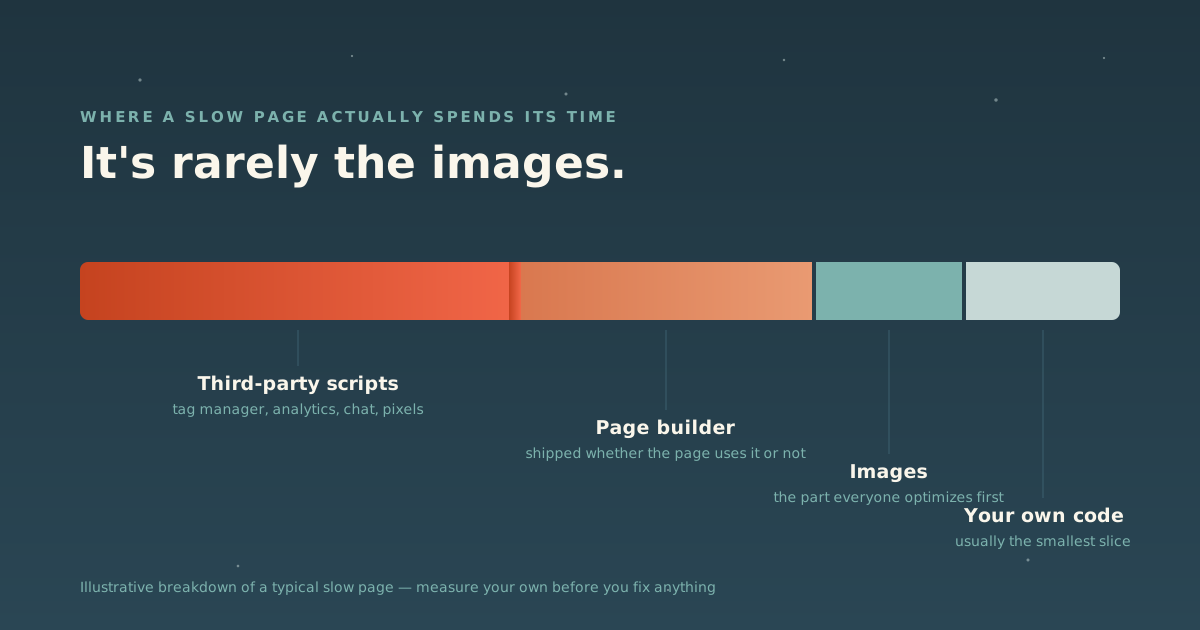
“Optimize your website” is one of those phrases that sounds like a single task. It isn’t. A slow site can be slow for entirely different reasons (a bloated theme, a chatty analytics setup, a background image nobody ever resized), and each of those has a different fix. Applying the wrong one wastes a weekend and changes nothing.
So this is a practical, tool-by-tool guide to figuring out what’s wrong and fixing it, including the WordPress-specific version of the question, which is the one we get asked most.
Start by measuring, not guessing
Before you touch anything, find out what’s actually slow. Guessing tends to land on images, because they’re the most visible thing on a page, but a lot of sites lose most of their speed budget to something a visitor never sees: a script holding the browser hostage before it can finish painting the page.
A few free tools will tell you the truth in under a minute:
- Google PageSpeed Insights: Google’s own tool, and the one whose opinion affects your search results.
- GTmetrix: a good second opinion with a waterfall view of exactly what’s loading and when.
- Our own Website Analyzer: free, takes about thirty seconds, and doesn’t ask for an email address before it tells you anything. It’s the same tool we pointed at our own site and didn’t love the answer.
Run more than one. They mostly agree, and where they don’t is often useful: Lighthouse-based tools simulate a device, so scores move a bit between runs. The numbers that matter most are the ones that don’t move: how long before real content appears, and how long the page is unresponsive before it can react to a click or tap.
The usual suspects
Once you know how slow, here’s what’s usually causing it, roughly in order of how often we see each one:
Third-party scripts running on the main thread. Tag managers, chat widgets, and marketing pixels are often the biggest cost on a page, and they’re invisible in a way images aren’t: nothing on screen tells you they’re there. Google Tag Manager itself is a lightweight container, but everything loaded inside it usually isn’t. The fix is running those scripts off the main thread rather than removing them (the approach we used on our own rebuild).
Unoptimized images. Still real, just rarely the biggest number. A hero image saved at full camera resolution and displayed at a fraction of its size costs real time decoding pixels nobody sees.
Everything a page builder ships whether you use it or not. If your site runs on Elementor, Divi, WPBakery, or a similar visual builder, a meaningful share of what loads is the builder’s own layout engine, present on every page whether or not that page uses the builder’s advanced features.
Plugins loading scripts on pages that don’t need them. A form plugin that loads its validation script sitewide, when only one page has a form. Each addition is individually reasonable; the total adds up to a page doing work for features it isn’t using.
If you’re on WordPress specifically
WordPress runs a huge share of the web for good reason: it’s flexible, the plugin ecosystem does in an afternoon what would otherwise take a month, and teams can edit it themselves without calling a developer every time. WordPress itself is rarely the bottleneck. What accumulates on top of it usually is.
A few things worth checking:
- Audit your plugins. Deactivate anything you don’t remember installing on purpose, and check what each one actually loads. A plugin doesn’t need to be active on every page to be installed on every page.
- Pick hosting built for WordPress. Generic shared hosting treats WordPress like any other PHP site; a host that specializes in it (WP Engine or Cloudways are two we recommend for different situations) handles caching and PHP execution in ways that show up directly in a speed score.
- Put a CDN in front of it. Cloudflare caches your site close to visitors and includes a free tier that covers a real amount of ground on its own.
- While you’re in the admin anyway, check your security posture. A hacked site is a much bigger problem than a slow one. Sucuri is worth a look if your site takes real traffic or handles payments.
Do you actually need to leave WordPress?
Usually, no. If your team edits pages directly and the plugin ecosystem is doing real work for you, a full rebuild is an expensive way to solve a problem that better hosting, fewer plugins, and a lighter theme usually fix on their own. We build WordPress sites for most of our clients for exactly this reason: it’s still the right tool for most jobs.
We moved our own site off WordPress, and it wasn’t because WordPress was slow. It was because our site has an unusual job (being readable by AI answer engines, in particular) that made a different stack the better fit for us. That’s a narrow reason, not a general argument against the platform.
The shortlist
If you only take one thing from this article, measure before you fix anything. If you want the full toolkit:
| Tool | What it’s for |
|---|---|
| Website Analyzer | Free, no-signup starting point; see your grade in thirty seconds |
| Google PageSpeed Insights | The measurement that affects your search ranking |
| GTmetrix | A waterfall view of exactly what’s loading and when |
| Cloudflare | CDN, DNS, and free SSL sitting in front of whatever you run |
| WP Engine / Cloudways | Hosting built around WordPress |
| Sucuri | Firewall and malware cleanup, for sites carrying real traffic |
More of these live on our full toolkit, a shelf of the tools we use and recommend, organized by what they’re for rather than what pays us to say so.
What we did about it
We didn’t just write this guide in the abstract. We ran our own site through this exact process, found a C−, and wrote up every fix, including the one that made things measurably worse before we caught it. The full case study has the before-and-after numbers if you want the long version, and our web design and SEO & AEO work both start from the same measure-first approach described here.